
What Is Input-Output, and How Do I/O Devices Work?
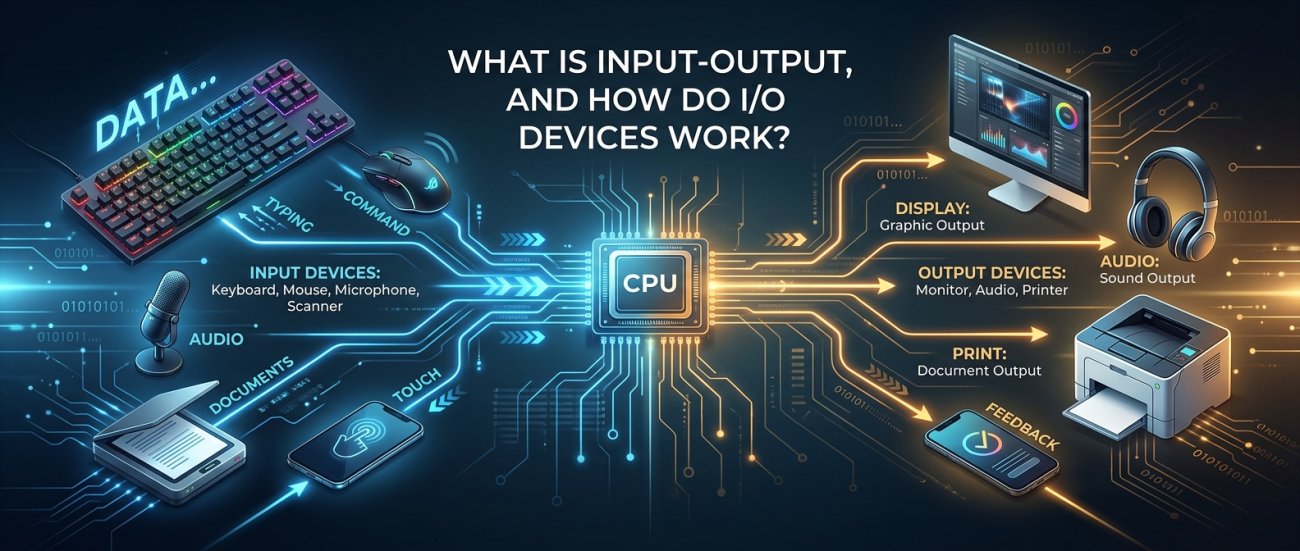
Every time you type on a keyboard, click a mouse, take a photo, hear a sound, or print a document, your computer is communicating with the outside world. The technologies that let a computer receive information and send information back are collectively known as input and output (I/O).
What Does Input and Output Mean?
The easiest way to understand I/O is to think about a computer as a machine that needs to communicate with you and its surroundings.
- Input is information going into the computer.
- Output is information coming out of the computer.
For example, when you type the letter A on your keyboard, the keyboard sends information to the computer. That is input. When the letter A appears on your monitor, the monitor is showing output.
So, in its simplest form:
Input → Computer processes information → Output
The Real-World Version: A Restaurant
Imagine a restaurant.
You give your order to the waiter. That order is information going into the restaurant's system. The kitchen processes the order and prepares your food. Finally, the waiter brings the food back to you.
A computer works in a surprisingly similar way:
- Input: You provide information.
- Processing: The computer works on that information.
- Output: The computer gives you a result.
Your keyboard is like the waiter taking your order. The CPU and other internal components are like the kitchen. Your monitor or speakers are like the waiter bringing the finished result back to you.
This simple idea explains a huge part of how computers interact with the world.
What Is an Input Device?
An input device is hardware that allows information, instructions, or signals to enter a computer.
Some common input devices include:
- Keyboard
- Mouse
- Microphone
- Webcam
- Scanner
- Touchscreen
- Game controller
- Digital camera
- Fingerprint reader
- Barcode or QR-code reader
These devices may look completely different, but they have something important in common: they collect information from the outside world and turn it into signals that a computer can understand.
How Does a Keyboard Provide Input?
When you press a key, the keyboard does not literally send the shape of a letter to the computer. Instead, it detects which key was pressed and sends an electronic signal representing that key.
The computer receives that information and determines what to do with it. If you press the letter A while typing a document, for example, the operating system and application interpret the keyboard input and display an A on the screen.
The important idea is that the keyboard acts as a translator between you and the computer. You interact with physical keys; the computer receives digital information.
How Does a Mouse Provide Input?
A mouse provides several kinds of information.
- Which direction the mouse moved
- How far it moved
- Which buttons were pressed
- Whether the scroll wheel was moved
Modern optical mice use a tiny sensor and light to detect movement across a surface. The mouse continually measures changes in the surface underneath it and reports those changes to the computer.
The computer then moves the pointer on the screen accordingly.
How Does a Microphone Turn Sound Into Input?
A microphone performs a particularly interesting job: it converts sound into electrical signals that can eventually be represented as digital data.
When you speak, your voice creates vibrations in the air. Those vibrations move a tiny component inside the microphone. The microphone converts that movement into an electrical signal.
A computer can then convert that signal into digital data that software can process.
This is how your computer can record your voice, recognize speech, conduct a video call, or respond to a voice command.
How Does a Camera Provide Input?
A webcam or digital camera is also an input device because it captures information from the physical world and sends it into the computer.
Inside a digital camera is a light-sensitive sensor. Light entering through the lens reaches this sensor, which measures the light at many tiny locations.
The camera turns those measurements into digital information representing an image.
When you join a video call, for example, your webcam repeatedly captures images and sends the resulting data to the computer. Software can then process, compress, store, or transmit those images.
What Is an Output Device?
An output device takes information from the computer and presents it in a form that people or other systems can use.
Common output devices include:
- Monitor or display
- Speakers
- Headphones
- Printer
- Projector
- External display panels
Output does not always have to be something you can see. It can be sound, printed material, movement, or another physical or electronic signal.
How Does a Monitor Produce Output?
A monitor receives digital information from the computer and turns it into images made from tiny points called pixels.
Each pixel can display different colors and brightness levels. By controlling millions of pixels, the display can create photographs, text, videos, animations, and everything else you see on the screen.
Think of a monitor as a giant electronic mosaic. Instead of arranging pieces of colored stone, it controls millions of tiny points of light to create an image.
How Do Speakers Produce Output?
Speakers perform the reverse of what a microphone does.
A microphone converts physical sound vibrations into an electrical signal. A speaker receives an electrical signal and uses it to create physical vibrations in the air.
Those vibrations travel through the air and reach your ears as sound.
In simplified form:
Sound → Microphone → Computer → Speaker → Sound
How Does a Printer Produce Output?
A printer takes digital information from a computer and turns it into a physical document.
For example, when you print a document, the computer sends information describing the pages to the printer. The printer interprets that information and places ink or toner onto paper in the appropriate positions.
The result is something physical that you can hold, rather than information remaining only inside the computer.
Some Devices Are Both Input and Output
Not every device fits neatly into the category of input or output. Some devices perform both jobs.
A touchscreen is one of the clearest examples.
The screen displays information to you, making it an output device. At the same time, the touchscreen detects where you touch it, making it an input device.
Your smartphone is therefore constantly handling both directions of communication:
- The screen shows you information: output.
- Your finger provides commands: input.
Other devices can also perform both roles. A network adapter, for example, can send and receive data over a network.
What Is I/O?
I/O is simply an abbreviation for Input/Output.
In computer science, the term is much broader than just keyboards and monitors. I/O refers to the movement of information between a computer system and something outside the part of the system currently doing the processing.
That "something outside" could be:
- A person using a keyboard
- A storage drive
- A printer
- A network connection
- A camera
- A microphone
- Another computer
- A sensor in a machine
This is why you may hear computer professionals talk about I/O operations even when they are not talking about keyboards or mice.
Is a Storage Drive an Input or Output Device?
This can initially seem confusing because a storage drive can both receive and provide information.
When the computer writes data to an SSD or hard drive, information is moving from the computer to the storage device. From the computer's perspective, that is output.
When the computer reads data from the drive, information is moving from the storage device into the computer. From the computer's perspective, that is input.
So a storage device can participate in both input and output operations.
What Happens Between Input and Output?
Input does not normally go directly to the final output device. The computer usually has to process the information first.
Imagine typing 2 + 3 into a calculator application.
- You press the keys. This is input.
- The keyboard sends information to the computer.
- The operating system and application receive that information.
- The calculator software performs the calculation.
- The result, 5, is sent to the display.
- The screen shows you the result. This is output.
So the overall process looks like:
Human → Input Device → Computer → Processing → Output Device → Human
Where Does the CPU Fit Into I/O?
The CPU, or Central Processing Unit, is the part of a computer that performs instructions and calculations. It often plays an important role in coordinating what happens with input and output.
Suppose you press a key on your keyboard. The CPU does not need to sit there constantly checking the keyboard thousands of times per second. Instead, computer hardware and the operating system can use mechanisms that notify the CPU when something needs attention.
The CPU can then execute the appropriate instructions to handle the input.
This allows the computer to deal with many things at once rather than constantly asking every device, "Do you have something for me yet?"
What Are Drivers, and Why Are They Needed?
Different hardware devices communicate in different ways. A computer needs software that knows how to communicate with a particular device. This software is commonly called a device driver.
Think of a driver as an interpreter.
You might tell the operating system, "Print this document." The operating system does not necessarily know the exact electrical commands required by every printer model ever made. The printer's driver helps translate the operating system's request into instructions that the specific printer understands.
The same general idea applies to graphics hardware, audio devices, network adapters, storage controllers, and many other pieces of hardware.
What Is an I/O Controller?
Many computers also use hardware controllers to help manage communication with devices.
An I/O controller is hardware that helps coordinate communication between the computer and a particular type of device or connection.
You can think of it as a traffic controller at a busy intersection. It helps organize the movement of information so that devices and the rest of the computer can communicate properly.
Modern computers contain many layers of hardware and software involved in I/O, so the simple picture of "device → CPU" is often much more complicated in practice.
What Are Ports?
A port is a physical or logical connection through which information can be exchanged.
On a computer, you may encounter physical ports such as:
- USB ports
- HDMI ports
- Ethernet ports
- Audio ports
- DisplayPort connections
A USB port, for example, can be used to connect keyboards, mice, storage devices, cameras, phones, and many other peripherals.
Ports provide a pathway for information to travel between devices.
What Is a Peripheral?
A peripheral is a device connected to a computer to provide additional functionality.
Keyboards, mice, webcams, printers, external drives, and many other devices are commonly described as peripherals.
The word can sound complicated, but the basic idea is simple: it is an additional device that works with the computer rather than being the computer's main processing hardware.
Input and Output Can Happen Very Quickly
Computers can perform enormous numbers of I/O-related operations in a very short amount of time.
Consider watching a video online. Your computer is simultaneously receiving data from the network, processing it, sending information to the graphics system, and producing images and sound through the display and speakers.
At the same time, your mouse and keyboard may be generating additional input.
All of this can happen so quickly that it feels instantaneous to you.
Why Is I/O Sometimes the Slow Part?
The CPU can perform operations extremely quickly, but some I/O devices are much slower.
For example, retrieving information from storage can take longer than performing a simple calculation in the CPU. Network communication can also be delayed because data has to travel between machines.
This creates an important concept in computing: sometimes the processor is ready to continue working but has to wait for data to arrive.
That is one reason computers use techniques such as caching, buffering, and asynchronous I/O to make better use of their time.
What Is Buffering?
A buffer is a temporary area used to hold data while it is waiting to be processed or transferred.
Imagine a bakery producing bread faster than a delivery driver can carry it away. Instead of stopping production every time the driver is busy, the bakery can temporarily place finished bread on shelves.
Those shelves are similar to a buffer.
Computers use buffers for many purposes, including audio, video, networking, printing, and storage operations.
What Is Caching?
A cache is a faster storage area that keeps information likely to be needed again.
Imagine you are cooking and repeatedly need the same ingredients. Instead of walking to the supermarket every time you need salt, you keep salt within easy reach in the kitchen.
That is the basic idea behind caching: keep frequently needed information somewhere faster or closer so that you do not have to retrieve it from a slower location every time.
Why This Matters: When I/O Goes Wrong
Many everyday computer problems are actually related to input and output.
Keyboard or Mouse Not Working
The problem could involve the device itself, its cable or wireless connection, the USB port, the battery, or the operating system's driver.
No Sound
If you cannot hear anything, the problem might be the application, volume settings, selected audio device, driver, cable, headphones, or speakers.
Monitor Shows No Picture
The computer may be running perfectly while the output path has a problem. The cable, input source, graphics hardware, monitor, or display settings could be responsible.
Printer Does Not Print
A printing problem can involve the printer, connection, paper, ink or toner, driver, print queue, or software.
The useful lesson is that "the computer isn't working" is often too broad a diagnosis. I/O gives you a way to think about where the communication chain might have failed.
A Simple Way to Troubleshoot I/O Problems
When an input or output device stops working, work through the communication path step by step.
- Check the physical connection. Is the cable plugged in? Is the device powered on?
- Check the device itself. Does it work on another computer or with another cable?
- Check the operating system. Does the computer recognize the device?
- Check the driver. Is the appropriate device software installed and working?
- Check the application. Is the program using the correct input or output device?
- Restart when appropriate. Restarting can sometimes clear temporary software or communication problems.
Thinking in terms of a chain—device → connection → operating system → driver → application—can make troubleshooting much easier.
Input and Output in Everyday Computing
Once you understand I/O, you begin to notice it everywhere.
- Typing a message is input.
- Seeing the message on screen is output.
- Speaking to a voice assistant is input.
- Hearing its response is output.
- Taking a photograph is input.
- Viewing the photograph is output.
- Downloading a file involves receiving data as input to the computer.
- Uploading a file involves sending data as output from the computer.
- Reading data from an SSD is input from the storage device.
- Writing data to an SSD is output to the storage device.
The same basic pattern appears in computers ranging from smartphones and laptops to servers, industrial machines, cars, and scientific equipment.
Why I/O Is Such an Important Part of Computing
A computer that could calculate but could not communicate with anything would have very limited usefulness.
I/O is what connects the computer's internal world to the outside world. It allows people to give computers instructions, allows computers to show or communicate results, and allows machines to exchange information with other machines.
In that sense, I/O is like the computer's senses and communication channels.
A camera can act somewhat like an eye. A microphone can act somewhat like an ear. A display can communicate visually. Speakers can communicate through sound. A keyboard and touchscreen let us deliberately send commands to the machine.
Of course, computers do not literally see or hear in the same way humans do. These devices convert physical events into signals and signals back into forms humans can understand.
The Takeaway
Input and output are simply the ways information moves into and out of a computer. Keyboards, mice, microphones, cameras, and touchscreens provide input, while displays, speakers, and printers provide output. Some devices, such as touchscreens and storage drives, can perform both roles.
Behind the scenes, hardware controllers, device drivers, the operating system, memory, and the CPU work together to move and process this information. Once you understand I/O as a communication system between the computer and the outside world, many everyday computer operations—and many common hardware problems—become much easier to understand.