
How Does a Touchscreen Know Where You Touched?
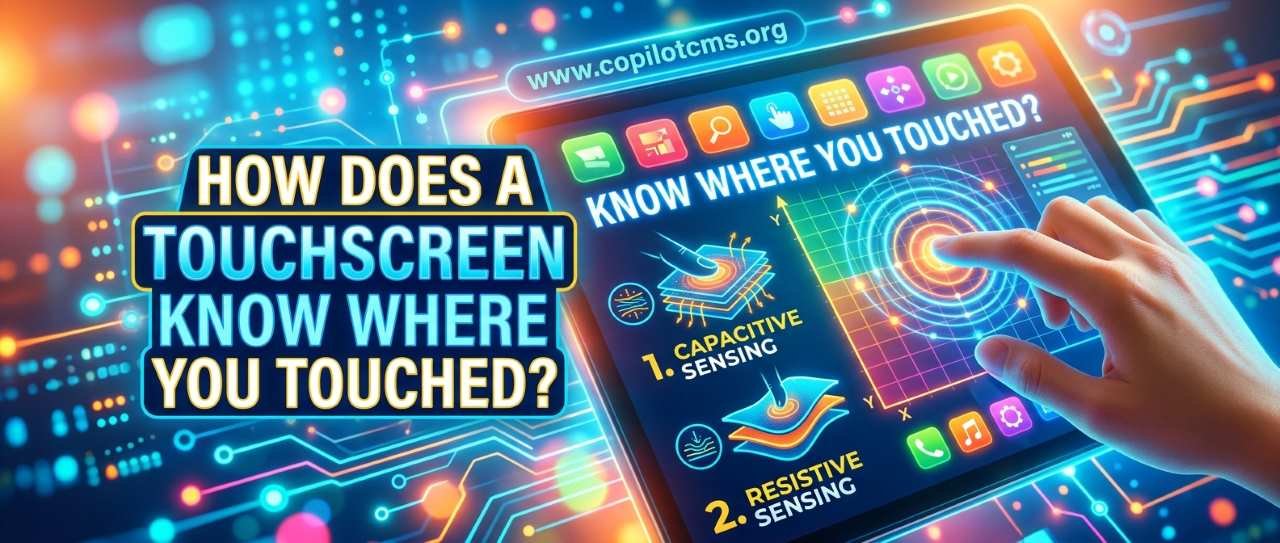
You tap a tiny icon on your phone, and somehow the screen knows exactly where your finger landed. But there is no tiny camera watching your fingertip—so how does the touchscreen figure out the location of your touch?
The Basic Idea: The Screen Is a Giant Coordinate Grid
The easiest way to understand a touchscreen is to imagine that the entire display is covered by an invisible grid of coordinates.
Just like a map can describe a location using an X coordinate (left to right) and a Y coordinate (top to bottom), a touchscreen can determine the position of your finger in roughly the same way.
When you touch the screen, special sensors detect something about that touch. The touchscreen's electronics then work out its position and send that information to the device's operating system.
The result might essentially be something like:
- X: 620 pixels from the left
- Y: 410 pixels from the top
The operating system can then determine what is located at that position. If there is a button there, it knows you probably meant to press that button.
Real-World Version: A Huge Invisible Map
Imagine placing a transparent sheet of graph paper over your phone's screen. Every point on the sheet has a location.
If you put your finger on one particular square, someone looking at the grid could say, "Your finger is at column 620, row 410."
A touchscreen does something similar electronically. It does not normally need to see your finger visually. Instead, it detects a physical change caused by your finger and uses that change to calculate where the touch occurred.
But How Can Glass Detect a Finger?
This depends on the type of touchscreen technology being used. The two major technologies you'll encounter are resistive touchscreens and capacitive touchscreens.
Modern smartphones overwhelmingly use capacitive touchscreens because they are responsive, support gestures and multitouch, and work well with a smooth glass surface.
How a Capacitive Touchscreen Works
A capacitive touchscreen takes advantage of a basic property of electricity: the human body can conduct electrical charge.
Under the glass is a very thin network of electrically conductive material. You cannot normally see this network because it is designed to be extremely thin and transparent.
The touchscreen electronics create an electrical field across this layer. When your finger approaches or touches the surface, your body interacts with that electrical field.
The touchscreen detects the resulting change and uses it to determine where your finger is.
Think of It Like an Invisible Ripple
Imagine dropping a small stone into a perfectly calm pond. The stone creates ripples that spread through the water.
Now imagine that instead of water, the touchscreen has an invisible electrical pattern. Bringing your finger close to it changes that pattern locally. The touchscreen's sensors notice the change and determine approximately where it happened.
The analogy isn't a literal description of electricity inside the screen, but it is a useful way to visualize the basic idea: your finger causes a measurable change, and the screen detects where that change occurs.
Why Your Finger Matters
Your body contains water and dissolved salts, which makes it capable of conducting electricity. That is important for the way most modern capacitive touchscreens work.
The screen doesn't need a large electric current flowing through your body. It is detecting a tiny change in an electrical property of the touchscreen.
In simple terms, the touchscreen is constantly monitoring its electrical environment. When your finger touches the glass, the local electrical conditions change. The touchscreen controller notices that change.
How Does It Know the Exact Location?
This is where things become particularly clever.
Under the touchscreen is a pattern of conductive lines arranged in a grid-like structure. Depending on the touchscreen design, these lines are used to detect changes at different positions across the surface.
The touchscreen controller repeatedly scans this sensing system.
- The screen establishes its normal electrical conditions.
- Your finger touches the surface.
- The electrical conditions change near your finger.
- The touchscreen controller measures those changes.
- It calculates the approximate X and Y position of the touch.
- That information is sent to the device's processor and operating system.
- The operating system decides what should happen at that location.
This entire process happens extremely quickly, which is why a button appears to respond almost immediately when you tap it.
The Touchscreen Is Not Actually "Seeing" Your Finger
This is an important distinction.
It might seem as though the screen somehow recognizes the shape or appearance of your finger. In ordinary touch detection, it doesn't.
The touchscreen is primarily measuring an electrical effect caused by your touch. It isn't taking a tiny photograph of your fingertip and analyzing the image to decide where you touched.
This is also why simply putting an ordinary object on a capacitive touchscreen often doesn't produce the same result as touching it with your finger.
Why Do Some Gloves Not Work?
Have you ever tried using a phone while wearing ordinary gloves and discovered that the screen barely responds?
The reason is closely related to how capacitive touch works.
Your finger can interact with the screen's electrical field. A thick insulating glove can prevent that interaction from reaching the touchscreen effectively.
That's why some gloves are specifically designed as touchscreen-compatible gloves. They use conductive material in the fingertips, allowing the electrical interaction needed for the touchscreen to detect the touch.
Why Does a Stylus Work?
It depends on the stylus.
Some inexpensive styluses are simply designed with a conductive tip that behaves somewhat like a finger. The touchscreen can detect the tip because it interacts with the capacitive sensing system.
More sophisticated active styluses are different. They can communicate electronically with the device and provide additional information such as pressure, tilt, buttons, or a much more precise position.
So when you see an artist drawing with a highly accurate stylus, the device may be receiving considerably more information than simply "something touched the screen here."
What About Multitouch?
Here's where touchscreen technology becomes even more impressive.
Your phone doesn't necessarily stop after detecting one touch. Modern capacitive touchscreens can detect multiple touch points at the same time.
For example, place two fingers on a photo and move them apart. The phone detects two separate touch locations and tracks how those locations change over time.
The operating system can interpret that movement as a pinch-to-zoom gesture.
From Touch Points to Gestures
Consider what happens when you scroll through a webpage.
- Your finger touches the screen.
- The touchscreen detects the starting position.
- You move your finger.
- The touchscreen repeatedly reports the finger's changing position.
- The operating system compares the positions over time.
- It recognizes the movement as a gesture and moves the page.
The touchscreen itself doesn't necessarily understand that you are "scrolling." It primarily reports touch information. Software interprets that information and decides what the gesture means.
The Touchscreen and the Operating System Have Different Jobs
This distinction helps explain how your phone works.
The touchscreen's hardware is mainly responsible for detecting physical interaction and reporting information about it.
The operating system, such as Android or iOS, takes that information and decides what it means.
Imagine a receptionist receiving a note that says, "Someone pressed button 4." The receptionist doesn't need to know how the person physically pressed the button. Their job is to figure out what button 4 is supposed to do.
Similarly, the touchscreen can report something like "touch detected at this position," while software determines whether that position corresponds to a keyboard key, a game control, a button, a link, or something else.
What Is a Resistive Touchscreen?
Before capacitive touch became dominant in smartphones, another technology called resistive touch was widely used.
A resistive touchscreen works in a very different way.
Imagine two extremely thin, flexible conductive sheets separated by a tiny gap. When you press the screen, the layers come into contact at the point where you pressed.
The electronics can detect that contact and calculate its position.
Why Resistive Screens Could Work With Almost Anything
Because resistive screens respond to physical pressure, they don't necessarily need your finger to have the same electrical properties as a capacitive touchscreen.
You could often operate a resistive touchscreen with a finger, stylus, gloved hand, or another suitable object.
The trade-off was that resistive screens generally required you to physically press the surface and traditionally did not provide the same smooth multitouch experience associated with modern capacitive displays.
Capacitive vs. Resistive: A Simple Comparison
- Capacitive: detects changes in an electrical field caused by a finger or conductive object.
- Resistive: detects physical pressure bringing conductive layers together.
- Modern smartphones: generally use capacitive technology.
- Older or specialized devices: may use resistive technology.
Why Does the Screen Sometimes Think You Touched It When You Didn't?
Touch detection isn't perfect. The touchscreen is trying to distinguish intentional touches from electrical noise, moisture, accidental contact, and other interference.
This is why a damaged or very wet screen can sometimes behave strangely.
Water Can Cause Problems
Water can interfere with capacitive touch detection because it can conduct electricity and alter the electrical conditions across the surface.
A few drops may cause little or no noticeable problem, but a wet screen can sometimes produce unexpected touches or make normal touches less reliable.
Damaged Screens Can Behave Strangely
A cracked screen isn't automatically going to stop working. However, damage to the display or its touch-sensing layers can interfere with touch detection.
Symptoms can include areas that don't respond, touches being detected somewhere else, or ghost touches—touches that appear to happen even though you aren't deliberately touching that location.
Why Does My Touchscreen Sometimes Not Respond?
If a touchscreen doesn't respond properly, the problem isn't necessarily the touchscreen technology itself.
Several things can interfere with touch input:
- A wet or dirty screen
- Thick or incompatible screen protectors
- Gloves that block capacitive interaction
- Physical damage to the display
- Software problems
- Electrical interference in unusual circumstances
- A failing touchscreen sensor or controller
Simple Things to Try
- Clean and dry the screen with a suitable soft cloth.
- Remove anything unusual covering the screen, if appropriate.
- Restart the device.
- Check whether the problem occurs everywhere or only in one area.
- Install available system updates if the manufacturer recommends them.
- If the same area consistently fails to respond, consider the possibility of hardware damage.
If only one small region of the screen has stopped responding, that can be a useful clue that the problem is related to the touch-sensing hardware rather than a particular app.
How Does the Phone Know What You Meant to Tap?
Suppose you tap a button that is only 100 pixels wide. Your finger is much larger than that button.
So how does the phone know what you meant?
Software handles much of this problem.
The touchscreen provides an approximate touch location. The application knows where its buttons and other interactive elements are located. If your touch falls within the region assigned to a button, the software can treat it as a tap on that button.
Developers can also design touch targets larger than the visible button itself. This makes small controls easier to use, especially on phones.
What Happens When You Type on a Touchscreen Keyboard?
A touchscreen keyboard is a great example of hardware and software working together.
Imagine tapping the letter A.
- Your finger touches the screen.
- The touchscreen detects the touch location.
- The operating system sends that information to the keyboard software.
- The keyboard determines which key occupies that location.
- The letter "A" is entered into the text field.
The touchscreen doesn't have to know that the letter A is there. It only has to accurately report where you touched. The software handles the meaning.
Why Touchscreens Feel So Responsive
Your phone is continuously processing touch information many times per second.
When you drag an icon, draw a line, or swipe through a webpage, the device isn't detecting only the beginning and end of your movement. It is receiving a stream of changing touch positions.
Software uses those positions to make the interface appear to follow your finger smoothly.
That is why dragging a photo across the screen feels almost like moving a physical piece of paper.
Does the Display Itself Detect the Touch?
Not exactly.
The visible image-producing part of the display and the touch-sensing system are related, but they have different functions.
The display's job is to produce the image you see. The touch-sensing layer's job is to detect interaction with the surface.
In modern devices, these components can be manufactured and combined very closely together, sometimes as part of an integrated display assembly. But conceptually, it is useful to think of them as two different systems:
- Display: "Here is the picture."
- Touch system: "Someone touched here."
Why This Technology Matters
Touchscreens have changed the way humans interact with computers because they remove an extra layer between the user and the information.
With a traditional computer, you might move a mouse to position a pointer and then click something.
With a touchscreen, you can often interact directly with the object you see. Want to move a map? Drag the map. Want to enlarge a photograph? Pinch it. Want to press a button? Touch the button.
Underneath that simple experience is a combination of sensors, electrical measurements, signal processing, operating-system software, and application code.
The Bigger Picture: Turning Physical Actions Into Digital Information
A touchscreen is an excellent example of a broader idea in computing: computers constantly convert events in the physical world into digital information.
Your finger is a physical object. The touch is a physical event. The touchscreen detects an electrical change caused by that event and turns it into numerical information such as a position and movement.
Software then interprets those numbers and turns them into an action.
So the journey looks roughly like this:
Finger → physical interaction → electrical change → sensor measurement → coordinates → software interpretation → action on screen
What feels like simply "tapping an icon" is actually a small chain of events happening extremely quickly.
The Takeaway
A touchscreen doesn't usually know where you touched by looking at your finger. Instead, a sensing layer detects a physical or electrical change caused by your touch and calculates its position on the screen.
On modern phones, capacitive touch technology is especially important: your finger changes the electrical conditions around a tiny part of the touchscreen, and the touchscreen controller uses those changes to determine where you touched. The operating system then takes that location and decides what it means—a tap, swipe, drag, keyboard press, or multitouch gesture.
In other words, the glass may look like a simple window into your phone, but underneath it is a sophisticated sensing system constantly asking one simple question: "Where did you touch?"