
SSD vs. HDD: Why Did Computer Storage Get So Much Faster?
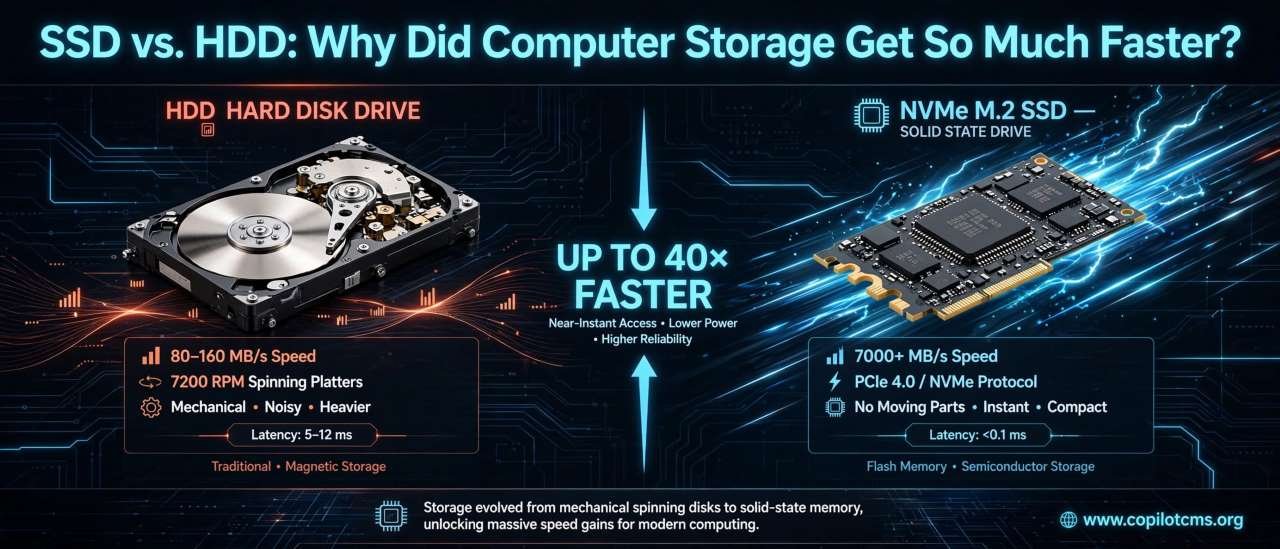
Remember when turning on a computer could feel like making a cup of tea and waiting for it? Much of that difference comes down to one important change: computers moved from traditional hard disk drives (HDDs) to much faster solid-state drives (SSDs).
What Is Computer Storage?
Before comparing SSDs and HDDs, it helps to understand what “storage” actually means. Computer storage is where your files, programs, photos, videos, documents, and operating system are kept when the computer is turned off.
Think of your computer as a desk where you work. Your RAM is like the space directly on top of the desk: it is where the computer keeps things it is actively using. Storage is more like a filing cabinet beside the desk: it holds information for the long term.
When you open a program, the computer takes some of the program's information from storage and places it into RAM so the processor can work with it. When you save a document, the information eventually goes back to storage.
This is why storage speed can have a noticeable effect on how quickly a computer starts programs, loads files, and boots the operating system.
What Is an HDD?
HDD stands for Hard Disk Drive. It is a traditional type of storage that has been used in personal computers for decades.
An HDD stores information magnetically on spinning disks called platters. A tiny mechanical arm moves across the surface of those platters to read and write information.
A Real-World Version
Imagine a huge library containing thousands of books. To find a particular sentence, a librarian has to travel to the correct shelf, locate the correct book, open it, and find the page.
An HDD works in a somewhat similar way. Its mechanical parts have to physically move to the appropriate location before the requested information can be read or written.
That physical movement is one of the main reasons HDDs are slower than SSDs.
What Is Inside an HDD?
A typical hard disk contains several important components:
- Platters: Circular disks that store data magnetically.
- Spindle: Spins the platters at high speed.
- Read/write heads: Tiny components that read information from and write information to the platters.
- Actuator arm: Moves the read/write heads across the platters.
- Controller: Electronics that manage communication between the drive and computer.
The platters typically spin thousands of times per minute. Even though that sounds incredibly fast, mechanical movement still introduces delays.
What Is an SSD?
SSD stands for Solid-State Drive. Unlike an HDD, an SSD has no spinning platters and no mechanical read/write arm.
Instead, it stores information in electronic memory called flash memory.
The same basic idea is used in many familiar devices, including USB flash drives and memory cards, although modern SSDs are much more sophisticated than a simple USB drive.
A Real-World Version
Imagine the same library, but now suppose every book has been replaced by an electronic database. Instead of walking through shelves and searching for a book, the librarian can instantly ask the computer for the exact information needed.
That is roughly the advantage of an SSD: it can access stored information electronically without waiting for a physical mechanism to move into position.
Why Are SSDs So Much Faster?
The biggest difference is surprisingly simple: SSDs do not need to physically move parts to find your data.
An HDD has to coordinate spinning platters and moving read/write heads. An SSD accesses memory electronically.
Consider what happens when you open a program.
- You click the program's icon.
- The operating system determines which files the program needs.
- The computer asks the storage drive for those files.
- The drive retrieves the information.
- The information is transferred into RAM.
- The processor begins working with it.
With an HDD, steps involving storage can be slowed by mechanical movement. With an SSD, the drive can retrieve many pieces of information electronically and with much lower access latency.
The Huge Difference in Access Time
One of the most important advantages of an SSD is not simply its maximum data-transfer speed. It is its extremely low access latency.
Latency is the amount of time it takes before a device can begin responding to a request.
Think about asking someone for a book.
With an HDD, the librarian may have to walk to a shelf, find the book, and bring it back before you can start reading. With an SSD, the information can be retrieved electronically with far less waiting.
This matters because computers constantly make small requests for information. Starting Windows, opening a web browser, launching a program, searching through files, and loading many game assets can involve thousands or even millions of individual storage operations.
Reducing the waiting time for those operations can make the entire computer feel much more responsive.
Sequential vs. Random Access
Storage performance is often described using two different types of work: sequential and random access.
Sequential Access
Sequential access means reading or writing a large amount of information in an orderly sequence.
Imagine reading a book from page 1 to page 300 without jumping around. That is similar to sequential access.
Copying a large video file from one location to another is a common example.
Random Access
Random access means requesting information from many different locations rather than reading everything in order.
Imagine opening a book and being asked to read page 17, then page 284, then page 42, then page 198.
Mechanical hard drives struggle more with this kind of work because their physical heads may need to move repeatedly between different locations.
SSDs are much better suited to random access because they do not need to physically move a head from one location to another.
Why Does an SSD Make a Computer Feel Faster?
Replacing an HDD with an SSD does not magically make the processor more powerful. Instead, it removes a major bottleneck: waiting for storage.
Imagine a restaurant with an excellent chef but an extremely slow waiter. The chef may be capable of preparing food quickly, but customers still wait because orders and ingredients are moving slowly.
The processor is somewhat like the chef. The storage drive is part of the system that supplies it with information. If storage takes too long to respond, the processor may spend time waiting.
Installing an SSD can therefore make an older computer feel dramatically more responsive, even if the CPU and RAM remain unchanged.
Why Does Windows Start Faster on an SSD?
When a computer starts, the operating system has to load many files and components from storage.
An HDD may need to perform a large number of physical movements while retrieving those files. An SSD can handle these requests electronically and with much lower latency.
That is why a computer that takes a long time to boot from an HDD can often start much more quickly after being upgraded to an SSD.
The exact improvement depends on the computer, operating system, SSD, HDD, and other hardware, but the difference can be very noticeable.
Why Do Programs Open Faster?
Programs are not usually stored as one giant file. They consist of many files and components that the operating system may need to locate and read.
When you launch a program, the computer may have to retrieve information from many different locations on the drive.
An HDD has to physically reposition its heads as necessary. An SSD can access different areas of its flash memory without that mechanical movement.
As a result, applications can often launch much more quickly from an SSD.
What About Games?
Modern games can contain enormous amounts of data, including textures, sounds, maps, models, animations, and other assets.
When a game loads a new area, it may need to retrieve many pieces of information from storage.
An SSD can significantly reduce loading times in many games, particularly when the game frequently needs to retrieve lots of small pieces of data.
However, an SSD does not automatically increase your game's frame rate. Frame rate is influenced heavily by the CPU, GPU, memory, game settings, and the game itself.
SSD vs. HDD: A Simple Comparison
Here is the basic difference:
- HDD: Stores data magnetically on spinning disks and uses moving mechanical parts.
- SSD: Stores data electronically in flash memory and has no moving storage mechanism.
- HDD: Generally slower, especially for random access.
- SSD: Generally much faster and more responsive.
- HDD: Usually offers more storage capacity for the money.
- SSD: Usually costs more per unit of storage, although prices have fallen considerably.
- HDD: Can be more sensitive to physical shock while operating because of its moving parts.
- SSD: Has no spinning platters or moving heads, making it more resistant to physical movement during normal use.
Are All SSDs the Same?
No. “SSD” describes a broad category rather than one single technology.
Different SSDs can have very different performance levels.
SATA SSDs
Many older or budget SSDs use the SATA interface. SATA SSDs are much faster and more responsive than traditional HDDs, but their performance is limited by the SATA connection.
They are still a very useful upgrade for computers that originally came with hard drives.
NVMe SSDs
NVMe SSDs are designed to communicate with a computer through the PCI Express interface, commonly called PCIe.
They can provide substantially higher transfer speeds than SATA SSDs and are particularly useful for demanding workloads.
However, the difference you feel during everyday activities is not always as dramatic as the difference in advertised benchmark numbers. Going from an HDD to almost any modern SSD can produce a much more obvious change in responsiveness than upgrading from one fast SSD to an even faster SSD.
Why Do SSD Advertised Speeds Look So Huge?
You may see SSDs advertised with impressive numbers such as several thousand megabytes per second.
These figures generally describe particular types of sequential data transfer under specific testing conditions. They are useful for comparing drives, but they do not mean that every computer task will run thousands of times faster.
Real-world performance depends on many things, including:
- The type of storage interface
- The SSD's controller
- The type of flash memory
- The amount of data being transferred
- Whether the workload is sequential or random
- The computer's CPU and RAM
- The operating system and software
- Whether the drive is nearly full
In other words, a benchmark number is like a car's top speed. It tells you something useful about the machine, but it does not tell you exactly how quickly you will complete every journey.
What Is Flash Memory?
Flash memory is a type of electronic memory that can retain information even when the power is turned off.
Inside an SSD are enormous numbers of tiny memory cells. The SSD's controller manages these cells and keeps track of where information is stored.
You can think of the controller as an extremely organized librarian who knows where every piece of information belongs and coordinates all the reading and writing operations.
Why Doesn't an SSD Wear Out Immediately?
Flash memory has an important characteristic: its memory cells can only tolerate a finite amount of writing over their lifetime.
That sounds alarming, but modern SSDs use several techniques to manage this limitation.
Wear Leveling
The SSD controller spreads writes across the drive rather than repeatedly using exactly the same memory cells.
Imagine a teacher who always writes on the same corner of a whiteboard. That area would wear out first. A smarter approach would be to use different areas of the board over time.
SSD controllers use a much more sophisticated version of this idea, called wear leveling.
Spare Space
SSDs can also reserve some memory for internal management tasks. This helps the controller move and organize data efficiently.
TRIM
Modern operating systems can use a command called TRIM to tell an SSD which blocks of data are no longer needed. This helps the SSD manage its available space more efficiently.
Does an SSD Last Longer Than an HDD?
There is no simple answer because longevity depends on how the drive is used, the specific hardware, environmental conditions, and other factors.
HDDs have mechanical components that can wear or fail. SSDs do not have spinning platters or moving read/write heads, but their flash memory has finite write endurance.
For ordinary everyday use, a modern SSD can provide many years of service. Nevertheless, important data should always be backed up because no storage device is guaranteed to last forever.
What Happens If an SSD Gets Full?
It is generally a good idea not to fill an SSD completely to the last available byte.
SSDs need to perform background management tasks, including moving and reorganizing data. Having some free space gives the drive more room to work efficiently.
A nearly full drive can also make everyday computer management more difficult because the operating system and applications need free space for temporary files, updates, caches, and other tasks.
So if your SSD is constantly almost full, consider moving large files such as videos, old installers, or archives to another storage device.
Why Are HDDs Still Used?
If SSDs are so much faster, why haven't HDDs disappeared?
The answer is mainly capacity and cost.
Hard drives can provide large amounts of storage at a relatively low cost. This makes them useful for things such as large media collections, backups, archives, surveillance recordings, and other situations where enormous capacity matters more than maximum speed.
For example, someone might use a fast SSD for Windows and applications while keeping a large HDD for photos, videos, backups, or other files that do not need to be accessed constantly.
A Common Modern Setup: SSD + HDD
You do not necessarily have to choose between an SSD and an HDD.
A computer can use both.
For example:
- SSD: Operating system, frequently used applications, and games.
- HDD: Large video collections, photographs, archives, backups, and less frequently used files.
This is similar to keeping everyday tools on your desk while storing rarely used equipment in a large cupboard nearby.
Can You Upgrade an Old Computer From HDD to SSD?
Often, yes. For many older computers, replacing the main HDD with an SSD is one of the most noticeable upgrades available.
However, compatibility matters. The computer needs to support the type of SSD you intend to install, and laptops may have physical size or connector requirements that differ from desktop computers.
An older computer may support a 2.5-inch SATA SSD but not a modern NVMe drive. Newer computers may support both, depending on their hardware.
Before purchasing an SSD, check the computer's motherboard or laptop specifications and determine which storage interfaces and physical drive formats it supports.
Why Does an SSD Upgrade Sometimes Feel Like a New Computer?
This is one of the most interesting things about storage.
People sometimes replace an old HDD with an SSD and wonder why a computer with the same processor suddenly feels dramatically better.
The reason is that everyday computing involves countless moments of waiting. The computer may be waiting for the operating system to load, a program to start, a file to be read, or a group of small pieces of data to arrive.
An SSD reduces many of those waiting periods.
It does not turn an old processor into a modern one, but it can remove enough storage-related waiting to make the entire system feel much more responsive.
What an SSD Does Not Fix
An SSD is powerful, but it is not a cure for every computer problem.
If your computer is slow because the CPU is too weak for a particular application, installing an SSD will not transform the CPU's capabilities.
Similarly, an SSD will not automatically solve:
- Insufficient RAM
- An underpowered graphics processor
- Overheating
- Software problems
- Malware infections
- A heavily overloaded operating system
- Internet connection problems
It is better to think of an SSD as removing a storage bottleneck rather than as a universal speed upgrade.
Why This Matters in Everyday Computing
Storage is easy to overlook because you cannot see it working. Yet your computer interacts with it constantly.
Every time you start the computer, launch an application, open a document, load a game level, search through files, or install software, the storage system is involved.
That is why changing from an HDD to an SSD can affect the overall feel of a computer so strongly.
The difference is not just a bigger number on a specification sheet. It is the difference between repeatedly waiting for a mechanical system to find information and having an electronic system retrieve it with much less delay.
Simple Troubleshooting: Is Your Storage Making Your Computer Slow?
If an older computer feels unusually sluggish, storage may be part of the problem. Here are some clues that an HDD could be contributing to the slow experience:
- The computer takes a long time to boot.
- Programs take a long time to open.
- The system becomes sluggish when several programs are running.
- Opening folders containing many files takes a noticeable amount of time.
- The computer frequently appears to pause while the storage drive is busy.
- The machine still uses an old mechanical hard drive as its primary system drive.
These symptoms can have other causes, so they do not prove that the HDD is faulty. But if an older machine still boots from an HDD, upgrading to an SSD can be worth considering.
What About External SSDs and HDDs?
Both technologies are also available as external drives.
An external HDD can be useful when you need inexpensive, high-capacity storage for backups or large collections of files.
An external SSD can be useful when you want faster file transfers and a compact, shock-resistant storage device.
The actual performance of an external drive also depends on the connection used. A very fast SSD connected through a slow interface may not be able to reach its maximum potential.
The Bigger Story: From Mechanical Computers to Electronic Storage
The transition from HDDs to SSDs is part of a much larger trend in computing: replacing mechanical processes with electronic ones whenever possible.
Mechanical systems can be extremely useful, but moving physical objects takes time. Electronics can often perform operations without waiting for physical movement.
We have seen similar changes in many areas of technology. Traditional film cameras gave way to digital sensors. Physical switches have increasingly been replaced by electronic controls. Mechanical storage is gradually being supplemented and replaced by electronic storage.
SSDs are another example of this broader evolution.
The Takeaway
An HDD stores data on spinning magnetic disks and uses moving mechanical parts to read and write information. An SSD stores data in electronic flash memory, so it can access information without waiting for spinning platters or moving read/write heads.
That fundamental difference gives SSDs much lower access latency and generally much faster performance, especially for the countless small storage operations modern computers perform.
The simplest way to remember the difference is this: an HDD is like a filing cabinet that requires you to physically move to the correct drawer and folder, while an SSD is more like an electronic filing system that can retrieve information without physically moving anything.
SSDs are not perfect, and HDDs still have important advantages, especially for inexpensive high-capacity storage. But for the computer's main operating system and everyday applications, moving from an HDD to an SSD can be one of the most noticeable improvements you can make to an older machine.